Countdown Timer Customization Options
At Sendtric - We have unlimited customisation options
Let us show you all the ways you can customise your timers within the Sendtric Dashboard.
The majority of the customisation options are in the Visual Design and Text & Labels Toggle tabs on the left hand side of the timer editor.
Timer Size, Style, Direction & Alignment
- Size
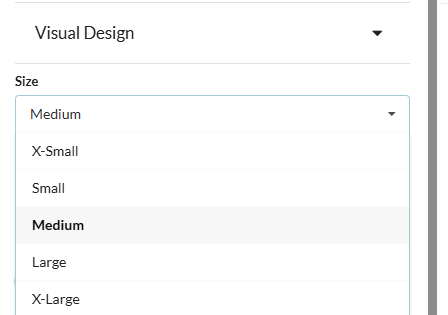
You can adjust the size of your timer depending on your needs as shown below.
- Timer Style
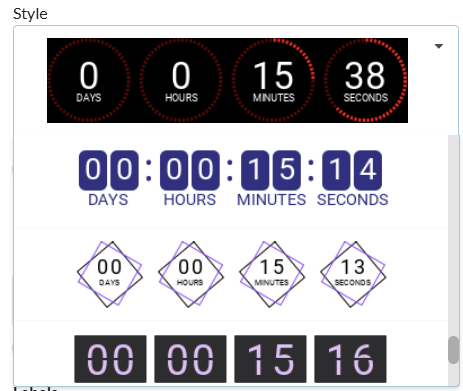
We have over 30 different base style of timers with different animations including motion timers. Motion timers are when the numbers transition with motion rather than a single frame change.
You can select the timer style that you want to customise in the style dropdown.
- Timer Direction
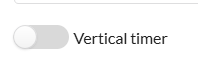
You can select whether you want the timer to be horizontal (default option) or if you wish the timer to be vertical. Simply toggle your preference.
- Alignment
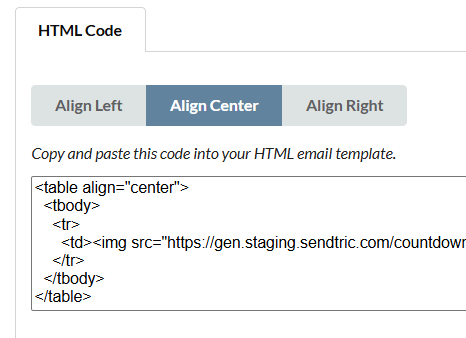
You can choose whether to align your timer to the left, center or to the right by selecting the option where the HTML code for your timer is:
Timer Colors, Background, Transparency, & Padding
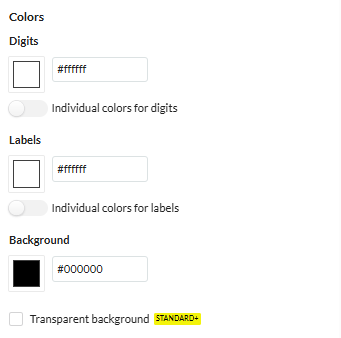
- Digit, Label and Background Colors
You can adjust the digits, labels, and background colors to match your brand or campaign exactly as you see fit. You can also select the background to be transparent if you wish. If you do select a transparent background, please keep these reccomendations in mind.
- Timer specific Ascent Colors
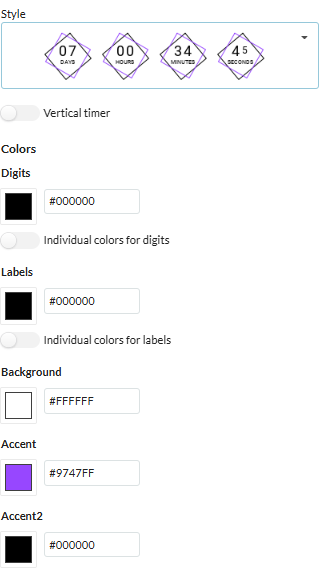
Some timers have more elements than others where you can adjust the color of each element. If the timer style you selected has this, then you will see 1 or 2 more Ascent colors.
- Padding
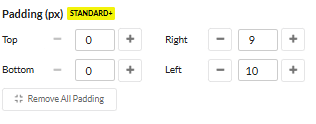
You can adjust the default padding around all sides of each timer style to suit your design needs. Evey timer style has a different default which you can reset if you make any changes.
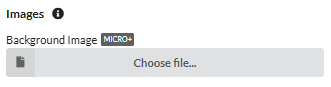
- Background image
Instead of a background color, you can also upload a background image of your choice.
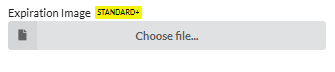
Expiration Image
When your timers expires and reaches 0, 0, 0, 0 seconds, you may wish to show an expiration image instead of an expired timer. The expiration image could say something along the lines of "Promotion has now expired but stay tuned for future discounts". You can upload your expiration image which will be shown as a preview below the timer in the editor.
Language(s), Digits Display, Custom labels
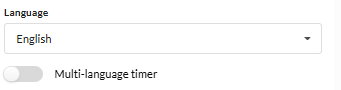
- Languages
You can select the language of the labels or on our enterprise plans, you can select the multi-language timer that you can use a merge tag to select the language for each user.
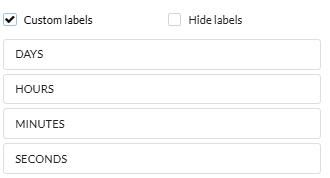
- Custom Labels or Hiding Labels
You can write your own custom labels or even hide the labels if you wish.
- Digits Display
You can choose which digit types are displayed on your timer, from years, days, hours, minutes and seconds.

Text Font & Font Size,
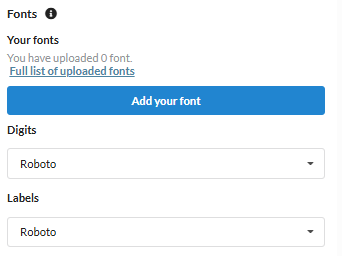
- Fonts
You can select the font of the digits and labels individually. We have over 900+ fonts you can choose from. Enterprise clients can also upload their own custom fonts to perfectly match their brand.
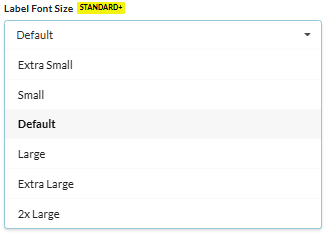
- Label Font Size
You can adjust the relative font size of the labels to create the exact timer design that you wish.
Label Position and Text Outline/Shadows
- Label Position
You can adjust the Label Height Position to where you wish the labels to be. Above the timer, below it, or even in the middle.

- Text Outline/Shadows
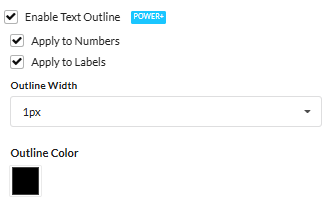
You can add a different color outline to the digits, labels, or both with a thickness of your choice for extra effective color customization.